Creating a Telegram bot that summarizes your Google Calendar events each morning with AI is easier than you might think. By combining Telegram's BotFather with an automation platform like Make, you can build a personal assistant that delivers a daily briefing straight to your chat. This guide walks you through the process step by step, using AI such as Gemini (or any other model you prefer) to generate concise summaries of your appointments.
Why Build a Telegram Bot for Calendar Summaries?
A daily summary of your schedule helps you start the day organized and informed. Instead of opening multiple apps, you get a single message with all your events, times, and locations. With AI, the bot can even highlight priorities or suggest preparation tips. It's a practical way to leverage automation and AI for personal productivity.
Find Original Home Decor sparking conversation at Grand Goldman Shop.

What You'll Need
- A Telegram account to create and interact with your bot.
- A Google Calendar account with events to summarize.
- An account on Make (formerly Integromat) to build the automation workflow.
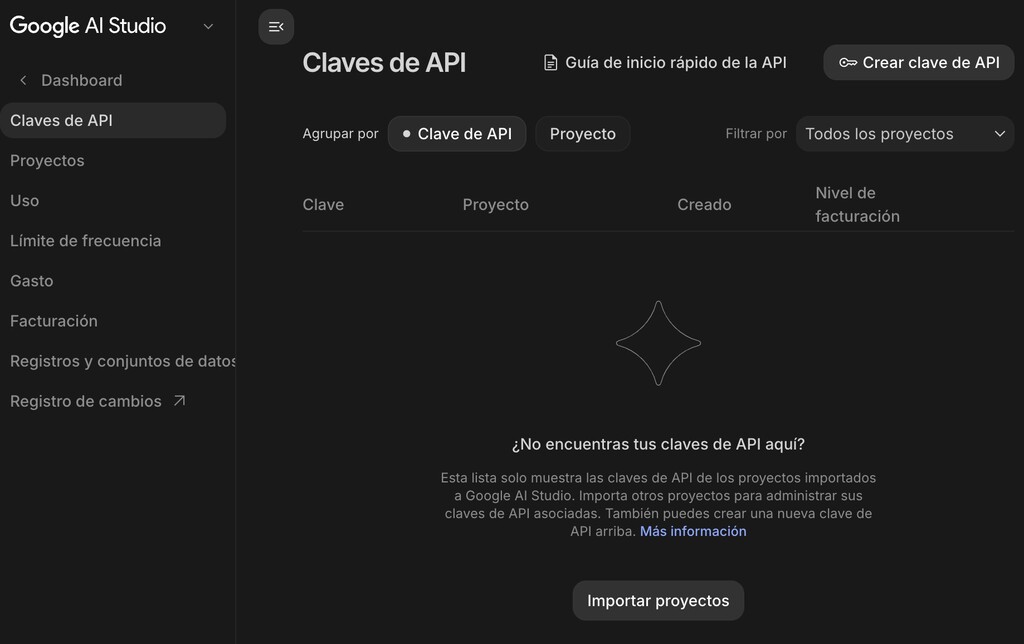
- An AI service like Gemini, ChatGPT, or Claude for generating summaries.
Step 1: Create Your Telegram Bot with BotFather
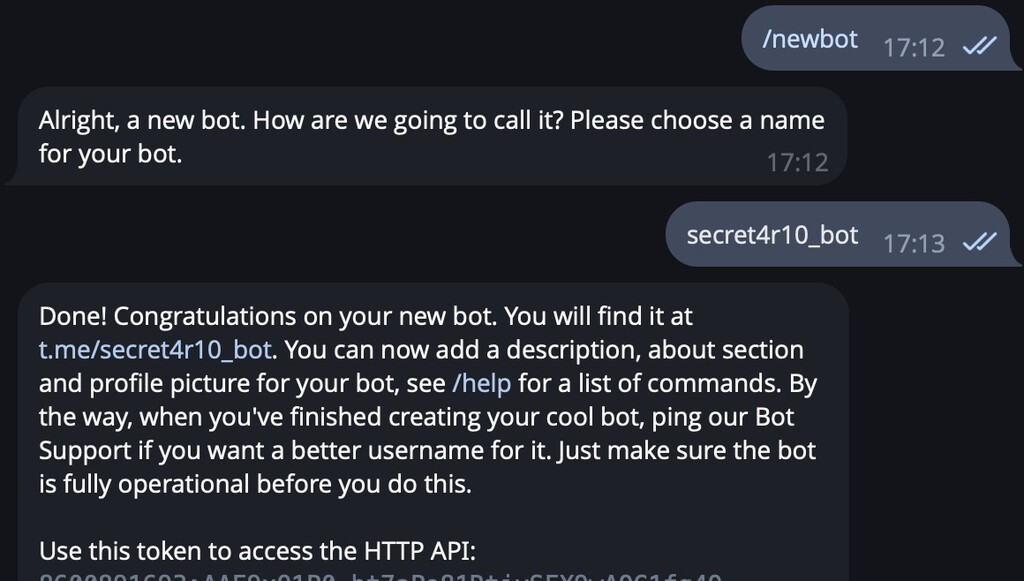
Open Telegram and search for @BotFather, the official bot for creating and managing bots. Start a chat and send the command /newbot. BotFather will ask for a name for your bot (this is the display name) and a username (which must be unique and end with 'bot'). Once you provide these, BotFather will confirm the creation and give you a token—a string of letters and numbers that acts as the bot's password. Keep this token secure; you'll need it to connect your bot to Make.
Step 2: Set Up a Workflow in Make
Sign up or log in to Make and create a new scenario. The workflow will consist of several modules: a trigger to start the automation (e.g., a scheduled time each morning), a Google Calendar module to fetch events, an AI module to generate the summary, and a Telegram module to send the message.
Configure the Trigger
Use the Schedule trigger to run the scenario every day at a specific time, such as 7:00 AM. This ensures you receive your summary before the day begins.
Fetch Google Calendar Events
Add a Google Calendar module and connect your account. Choose the List Events action and set it to retrieve events for the current day. You can filter by calendar and specify the time range. The module will output event details like title, start time, and location.

Integrate AI for Summarization
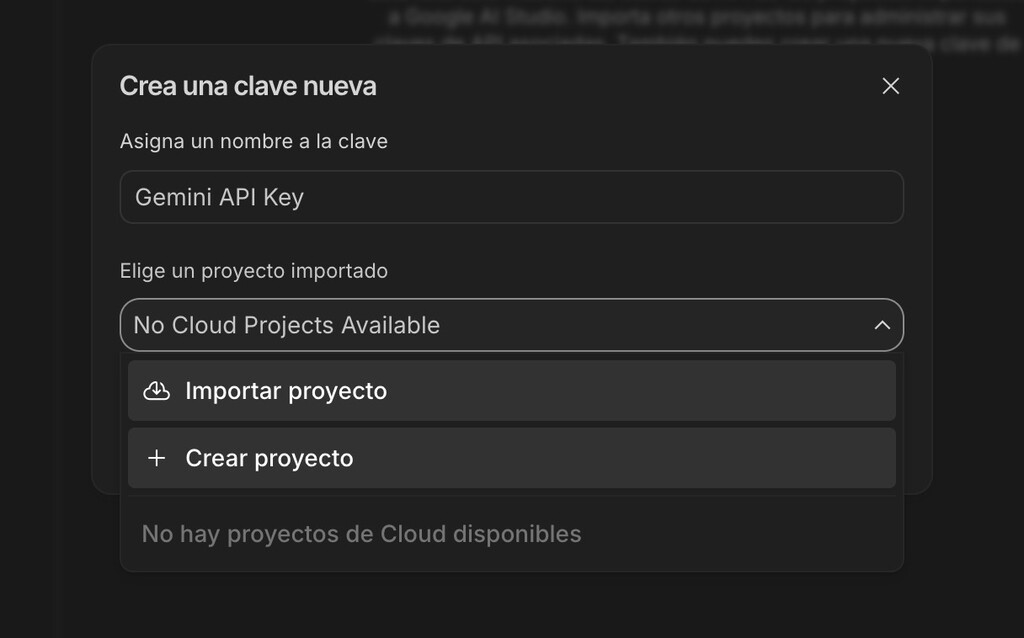
Add an AI module, such as Gemini or OpenAI, and configure it to take the calendar data as input. Craft a prompt that instructs the AI to summarize the events in a friendly, concise manner. For example: 'Summarize the following calendar events for today in a brief morning message.' Map the calendar output to the prompt. The AI will return a text summary.
Send the Summary via Telegram
Finally, add a Telegram Bot module. Connect it using the token from BotFather. Choose the Send Message action and specify the chat ID (your user ID or a group ID) and the message content from the AI module. Test the scenario to ensure everything works.
Comparison of AI Models for Summarization
| AI Model | Strengths | Considerations |
|---|---|---|
| Gemini | Good at concise summaries, integrates with Google services | May require API key setup |
| ChatGPT | High-quality natural language output | Paid API access |
| Claude | Strong at handling long contexts | Limited free tier |
Choose the model that best fits your needs and budget. All can be integrated into Make with varying degrees of ease. The background to this story is set out in Create a World Cup 2026 Match Calendar with AI and Sync to Google Calendar. A related thread runs through LG's Smart Home Future: Chat via Telegram, Not Another App.
Privacy and Security Considerations
Before proceeding, be aware that you'll be sharing your calendar data with third-party services: Make and the AI provider. While Google already has your data, you're now extending access to others. Review their privacy policies and ensure you're comfortable with the level of data sharing. Use API keys securely and avoid sharing your bot token publicly. Earlier coverage in Claude Cowork: AI Desktop Assistant for File Automation shows how the argument developed. A closer look at the same subject appears in Siri AI: Apple's Slow But Ambitious Personal AI Assistant.
Testing and Troubleshooting
After building the scenario, run it manually to test. Check that the Telegram bot sends the message correctly. If not, verify the token, chat ID, and module connections. Common issues include incorrect date formats or missing permissions. Adjust the Google Calendar module to include all-day events if needed. Anyone following the wider picture can start with Trending: latest articles. The same theme surfaces in Gemini Spark: What Google's AI Agent Can Do and Who Can Use, which takes a different angle.
FAQ
Can I use a different AI instead of Gemini?
Yes, Make supports various AI services like OpenAI and Claude. You can replace the AI module with your preferred provider by configuring the API key and adjusting the prompt.
Is this automation free?
Make offers a free tier with limited operations per month, which may be sufficient for daily summaries. However, AI services often require paid API access for regular use.
How do I get my Telegram chat ID?
You can obtain your chat ID by messaging the bot @userinfobot on Telegram. It will reply with your user ID, which you can use in the Telegram module.
Can I schedule the summary at a different time?
Absolutely. In the Schedule trigger, you can set any time and frequency, such as multiple times per day or specific weekdays.
Building a Telegram bot that summarizes your Google Calendar with AI is a rewarding project that combines several powerful tools. For those interested in the latest developments in messaging platforms and AI, check out our article on Telegram founder Pavel Durov wanted by Russia over dating bot, which highlights the evolving landscape of Telegram and its features.
Browse the Shop
 Acacia frida deluxe solid wood bed frame |
Bedroom bench |
Bed chest drawers |
Lingerie dresser |
Frame base |
Mirror with jewelry storage |
30 Bathroom Vanity |
Memory foam queen mattress |
Mattresses for back pain |
Nightstand set of 2 |
Grand Goldman Shop |
Civil Lawyer
Deutschland Trikot WM 2026