Learning how to scan whiteboards and documents with your phone is essential for capturing meeting notes, class lectures, or important papers without frustration. A quick photo often yields skewed images, hand shadows, glare from overhead lights, and blurry text that's hard to read later. Although smartphone cameras have ample resolution, treating a regular photo like a scanned document is the most common mistake. To get sharp, high-contrast, truly legible copies, you only need to adjust your technique and leverage your phone's built-in tools or a few key accessories.
Why Regular Photos Fail as Scans
When you take a standard photo of paper or a whiteboard, your phone's processing tries to interpret the scene as a landscape or portrait. This leads to three main issues: perspective distortion (the document appears tilted or trapezoidal), uneven lighting (shadows and glare obscure text), and low contrast (faint text blends into the background). These problems make the text difficult to read and impossible to extract with OCR.
Find Original, High-end Home Decor that spark conversation at Grand Goldman Shop.
Understanding these pitfalls is the first step toward better scans. By addressing perspective, lighting, and contrast, you can transform your phone into a powerful scanning tool.
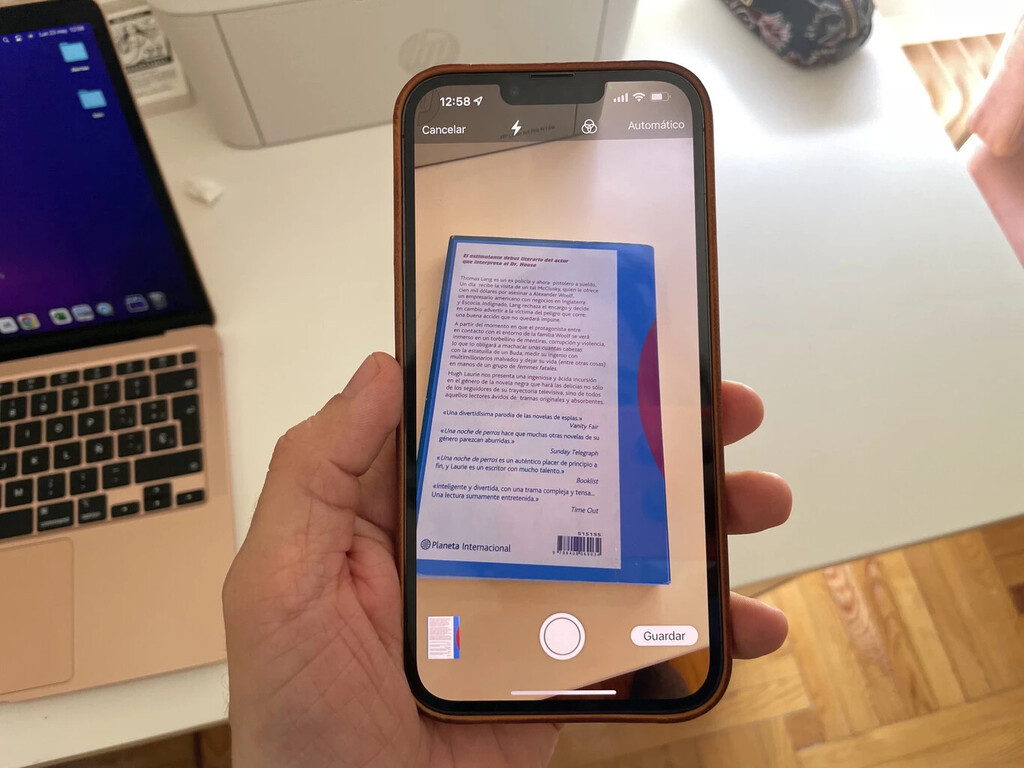
Built-in Scanning Features on iOS and Android
Before downloading third-party apps, explore the scanning engines already integrated into iOS and Android. Both platforms offer automatic perspective correction and high-contrast filters.

iOS: Notes App
Open Notes, tap the camera icon, and select Scan Documents. Your iPhone automatically detects the document's edges, corrects perspective, and applies a filter for readability. You can scan multiple pages in one session and save as a PDF.
Android: Google Drive
In Google Drive, tap the plus button and choose Scan. The app uses similar edge detection and enhancement. For whiteboards, switch to the whiteboard mode if available, which boosts contrast and reduces glare.
These built-in tools are free, fast, and often sufficient for everyday needs. They also integrate seamlessly with your cloud storage. Context on how this played out before sits in SkyShowtime Half-Price Deal: Save on Standard and Premium Plans. A companion piece, Hisense IFA 2026: RGB MiniLED TVs and AI Kitchen Appliances, approaches the same subject from another angle.
Technique Tweaks for Perfect Scans
Even with the best software, your technique matters. Follow these guidelines to minimize distortion and glare. The background to this story is set out in How to Clean Glass: Tips for the Best Results. A related thread runs through Trending: latest articles.
- Lighting: Use indirect, even light. Avoid overhead fluorescents that cause glare on whiteboards; position yourself so your shadow doesn't fall on the document.
- Angle: Hold your phone parallel to the document. For whiteboards, stand directly in front, not off to the side.
- Stability: Use both hands or rest your phone on a stable surface. Tap to focus before capturing.
- Cleanliness: Wipe your camera lens and the whiteboard surface to remove smudges and dust.
- Framing: Fill the frame with the document, but leave a small margin for edge detection.
These simple adjustments can dramatically improve scan quality.
Accessories That Make a Difference
While software works wonders, small physical accessories can be game-changers. A portable tripod or phone stand keeps your device steady and parallel to the surface. A clip-on light provides consistent illumination, reducing shadows. For whiteboards, a polarizing filter can cut glare significantly. If you frequently scan books or bound documents, consider a book scanner like the CZUR Shine Ultra, which offers 13MP resolution and 340 dpi for professional-grade results. Earlier coverage in Vivo X500 Pro Max Camera Test: A Phone That Replaces Your Camera shows how the argument developed. A closer look at the same subject appears in How to Make Phone Photos and Videos Take Up Less Space.
These gadgets are inexpensive and can save you hours of frustration.
Step-by-Step: Scanning a Whiteboard
Whiteboards present unique challenges due to their size and reflectivity. Here's how to get a clean scan every time. Anyone following the wider picture can start with Xiaomi 17T Pro Price Drop Before Black Friday on PcComponentes. The same theme surfaces in Android Fragmentation Returns: AI Features Create New Divide, which takes a different angle.
- Prepare the board: Erase thoroughly and use fresh markers. Avoid yellow or light colors that don't contrast well.
- Position yourself: Stand directly in front of the board, with your phone parallel to it. Use a stand if possible.
- Lighting: Turn off overhead lights that cause glare. Use ambient light or a clip-on light from the side.
- Use scanning mode: Open your phone's scanning app (Notes or Google Drive) and select whiteboard mode if available.
- Capture and adjust: Take the photo, then use the app's editing tools to boost contrast and crop.
With practice, you can scan a whiteboard in under a minute.
Comparison of Scanning Methods
Different methods suit different needs. The table below compares common approaches.
| Method | Pros | Cons | Best For |
|---|---|---|---|
| Built-in app (iOS/Android) | Free, automatic correction, easy | Limited advanced features | Everyday documents, quick whiteboard capture |
| Third-party scanning app | Advanced filters, OCR, cloud export | May require subscription | High-volume scanning, text extraction |
| Dedicated scanner (e.g., CZUR Shine Ultra) | High resolution, fast, professional quality | Higher cost, less portable | Books, archival documents, frequent use |
Choose based on your frequency and quality requirements.
Frequently Asked Questions
How can I avoid glare when scanning a whiteboard?
Glare comes from direct light sources. Turn off overhead fluorescents and use indirect lighting or a clip-on light positioned to the side. A polarizing filter on your phone's lens can also help.
Do I need a special app to scan documents?
Not necessarily. Both iOS and Android have built-in scanning features in Notes and Google Drive, respectively. They handle perspective correction and contrast enhancement well for most needs.
What's the best way to scan a book page without damaging the book?
Use a book scanner like the CZUR Shine Ultra, which has a book-friendly design. Alternatively, use your phone's scanning app and gently press the page flat, avoiding the spine.
Can I extract text from scanned images?
Yes, many scanning apps include OCR (optical character recognition) that converts images to editable text. Built-in apps may offer this as well, depending on your device.
Mastering phone scanning is a valuable skill that saves time and reduces paper clutter. By combining proper technique with the right tools, you can achieve professional-quality scans every time.
Browse the Shop
 Acacia frida deluxe solid wood bed frame |
Bedroom bench |
Bed chest drawers |
Lingerie dresser |
Frame base |
Mirror with jewelry storage |
30 Bathroom Vanity |
Memory foam queen mattress |
Mattresses for back pain |
Nightstand set of 2 |
Grand Goldman Shop |
Civil Lawyer
Deutschland Trikot WM 2026
Acacia frida deluxe solid wood bed frame |
Bedroom bench |
Bed chest drawers |
Lingerie dresser |
Frame base |
Mirror with jewelry storage |
30 Bathroom Vanity |
Memory foam queen mattress |
Mattresses for back pain |
Nightstand set of 2 |
Grand Goldman Shop |
Civil Lawyer
Deutschland Trikot WM 2026