The blue dot on Android is a privacy indicator that shows when an app is accessing your location. It appears in the status bar at the top right of your screen and disappears when location access stops. This feature helps you monitor which apps use your location and when.
Similar to the green and orange dots that indicate camera and microphone access, the blue dot is part of Android's privacy controls. It was introduced to give users more transparency about sensitive data usage. Currently, it is rolling out to some Google Pixel devices and will likely expand to more Android phones.
Find Original Home Decor sparking conversation at Grand Goldman Shop.

What Does the Blue Dot Mean?
The blue dot indicates that an app is actively using your device's location. It appears whenever your phone is sending location data and vanishes when it stops. This real-time indicator helps you see exactly when location services are in use.
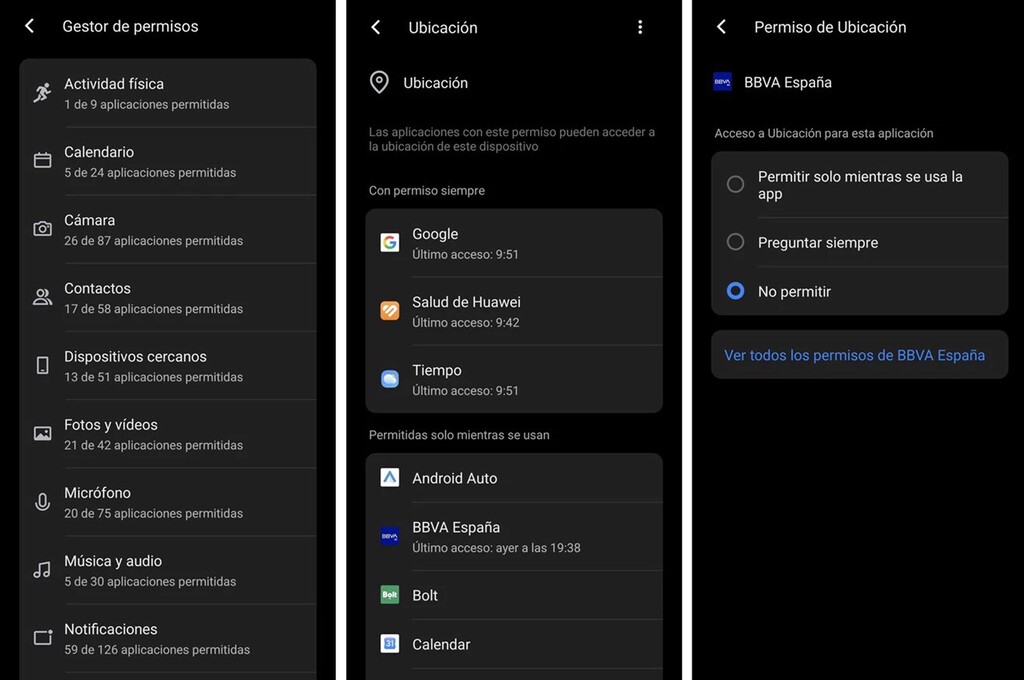
Android uses this indicator to prevent apps from accessing your location without your knowledge. It also helps you detect any suspicious behavior from apps that might be misusing permissions. By keeping an eye on the blue dot, you can take action if something seems off.
Why Did Android Introduce the Blue Dot?
Android introduced the blue dot to enhance user privacy. With more apps requesting location access, users need a clear way to know when their location is being tracked. The blue dot provides that visibility, complementing the existing green and orange dots for camera and microphone.
This move aligns with Google's broader efforts to improve transparency and give users more control over their data. It also encourages developers to be more responsible with location permissions. Ultimately, the blue dot empowers you to make informed decisions about which apps you trust.
What to Do If the Blue Dot Appears Unexpectedly
If the blue dot shows up when you're not using a location-based app, it could signal that an app is accessing your location in the background. First, check which app is responsible by swiping down from the top of the screen to open the notification shade and tapping the blue dot. This will show you the app or apps currently using your location.
If you see an app you don't recognize or trust, consider revoking its location permission. You can do this by going to Settings > Apps > [App name] > Permissions > Location and selecting 'Deny'. You can also review which apps have background location access and restrict them if needed.
- Blue dot: indicates location access
- Green dot: indicates camera access
- Orange dot: indicates microphone access
- Tap the dot to see which app is using the permission
- Revoke permissions for apps you don't trust
How to Manage Location Permissions on Android
To control which apps can access your location, open Settings and navigate to Privacy > Permission manager > Location. Here, you'll see a list of apps and their location access status. You can change permissions for each app individually.
Android offers three location permission options: 'Allow all the time', 'Allow only while using the app', and 'Don't allow'. For most apps, 'Allow only while using the app' is sufficient. Avoid granting background location access unless absolutely necessary, as it can drain battery and raise privacy concerns.
Blue Dot vs. Other Privacy Indicators
The blue dot is part of a trio of privacy indicators in Android. Each color represents a different type of sensitive data access. The table below summarizes what each indicator means. The longer history behind the story is traced in Blue Dot on Android: What It Means and How to Manage.
| Indicator Color | Data Accessed | When It Appears |
|---|---|---|
| Blue | Location | When an app uses your location |
| Green | Camera | When an app uses your camera |
| Orange | Microphone | When an app uses your microphone |
These indicators are designed to be unobtrusive but noticeable. They appear in the status bar and can be tapped for more information. This system gives you a quick way to monitor sensitive permissions without digging through settings. The background to this story is set out in MS Now Texas Fan Event Sparks Blue Dot Hopes in Tarrant County. A related thread runs through NHS Staff Investigated for Accessing Tiger Victim Records. Earlier coverage in NHS Staff Sacked for Accessing Victim Records in Nottingham Attack shows how the argument developed.
Which Devices Have the Blue Dot?
The blue dot is currently available on some Google Pixel devices, such as the Pixel 6 and newer models, as part of Android 12 and later updates. Google plans to roll it out to more devices over time. Other manufacturers may also adopt the feature in their custom Android skins. A closer look at the same subject appears in Queensland Court Weighs Media Access in Extortion Case. Anyone following the wider picture can start with Trending: latest articles. The same theme surfaces in How to Send a Fake Location on WhatsApp Without Being There, which takes a different angle.
If you don't see the blue dot on your phone yet, check for software updates. As Android versions evolve, more devices will likely include this privacy indicator. Keep your system updated to benefit from the latest security features. Context on how this played out before sits in How to Find Someone's Location Using Their Phone Number. A companion piece, WhatsApp Green Dot Status: What It Is and How to Hide, approaches the same subject from another angle.
Frequently Asked Questions
What does the blue dot on my Android screen mean?
The blue dot indicates that an app is currently accessing your location. It appears in the status bar and disappears when location access stops.
Why does the blue dot appear even when I'm not using a location app?
Some apps may access your location in the background. Tap the blue dot to see which app is responsible, then review its permissions and restrict access if necessary.
How can I turn off the blue dot?
You cannot disable the blue dot itself, as it's a system-level privacy feature. However, you can revoke location permissions for specific apps to prevent them from triggering it.
Is the blue dot available on all Android phones?
Currently, it's available on select devices like Google Pixel phones running Android 12 or later. More devices are expected to receive it through software updates.
Browse the Shop
 Acacia frida deluxe solid wood bed frame |
Bedroom bench |
Bed chest drawers |
Lingerie dresser |
Frame base |
Mirror with jewelry storage |
30 Bathroom Vanity |
Memory foam queen mattress |
Mattresses for back pain |
Nightstand set of 2 |
Grand Goldman Shop |
Civil Lawyer
Deutschland Trikot WM 2026