Learning how to organize computer files with Claude Cowork can transform a chaotic desktop into a structured system in minutes. Claude Cowork is an AI agent that controls elements of your computer and performs tasks autonomously, though it asks for permissions at each step. In this guide, we'll show you how to use it to create subfolders, sort photos and screenshots, rename files, and even change formats—all without touching a thing yourself.
What Is Claude Cowork and Why Use It for File Organization?
Claude Cowork is a feature of Claude, Anthropic's AI assistant, designed to act as a hands-on agent for your computer. Unlike a chatbot that only gives advice, Cowork can actually execute actions like moving files, creating folders, and renaming items based on your instructions. It's like having a personal assistant who organizes your digital life while you focus on other things.
Find Original Home Decor sparking conversation at Grand Goldman Shop.

For file organization, this is a game-changer. Instead of manually dragging and dropping, you can simply tell Claude what you want, and it does the work. For example, you can ask it to create two subfolders—one for photos and one for screenshots—and sort your files accordingly, even converting formats if needed. The best part? It's designed with safety in mind: Claude won't delete your original files unless you explicitly ask it to, so you always have backups.
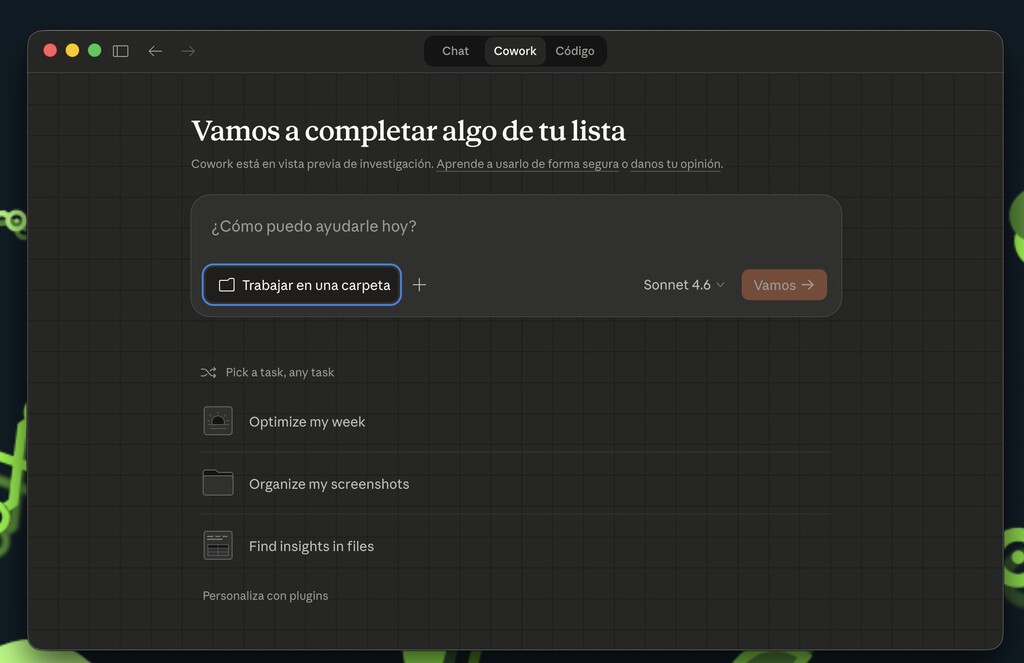
Step-by-Step: Organizing Files with Claude Cowork
Before you start, ensure you have a paid subscription to Claude Pro and the Claude desktop app installed. Cowork is a premium feature, so you'll need one of the Pro versions to access it. Once you're set up, follow these steps:
- Open the Claude desktop app on your computer.
- Click on the Cowork tab to activate the agent.
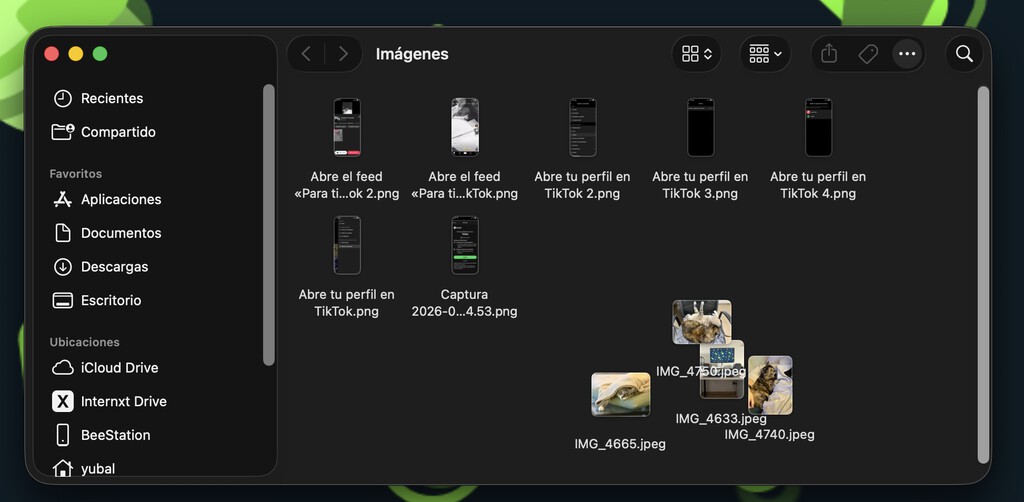
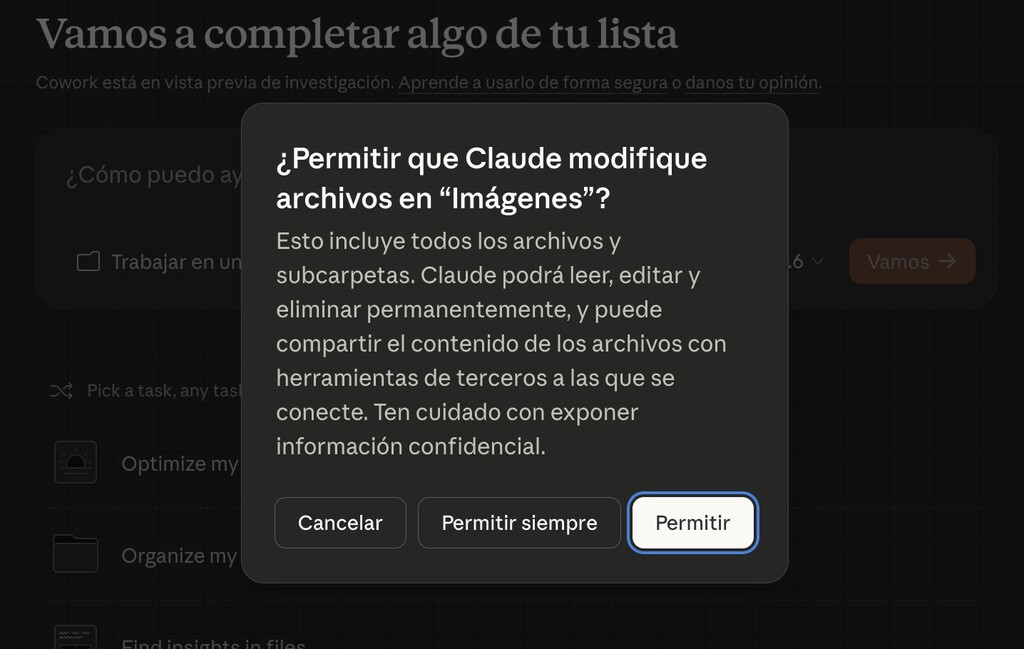
- Grant permissions when prompted—Claude will ask for access to specific folders or actions.
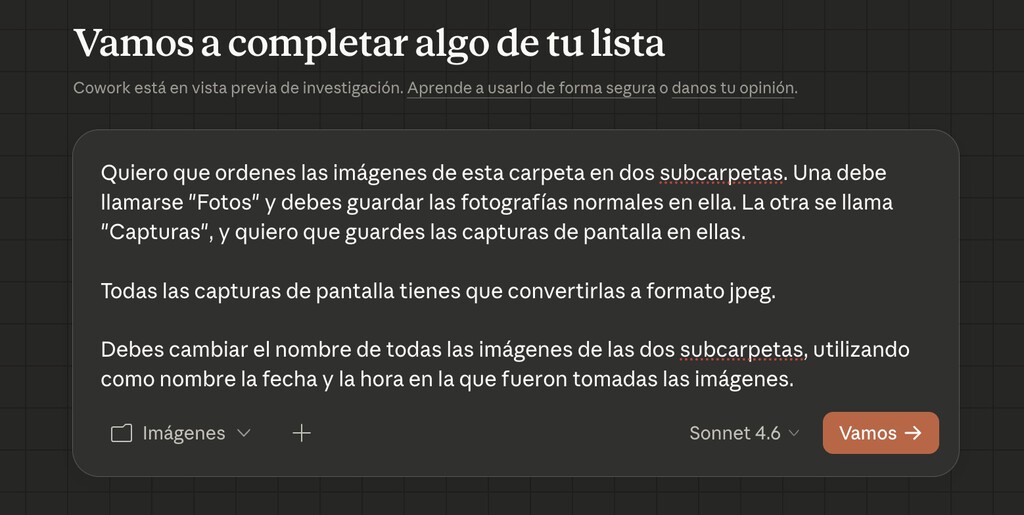
- Give clear instructions: For example, “Create two subfolders named ‘Photos’ and ‘Screenshots’ in my ‘Downloads’ folder. Move all image files into ‘Photos’ and all screen captures into ‘Screenshots’. Convert any PNG files to JPG.”
- Review and confirm each action as Claude walks you through the process.
Claude will then perform the tasks, keeping you informed along the way. You can also restrict it to only work within a specific folder for added security.
Key Benefits of Using Claude Cowork for File Management
Why bother using an AI agent for file organization? Here are some compelling reasons:
- Time-saving: Automate repetitive tasks like sorting and renaming hundreds of files.
- Accuracy: Reduce human error—Claude follows your instructions precisely.
- Safety: Original files are preserved unless you explicitly request deletion.
- Flexibility: Handle any file type, from documents to images, and convert formats as needed.
- Autonomy: Let Claude work in the background while you focus on other tasks.
Whether you're a professional drowning in project files or a casual user with a messy desktop, Cowork can bring order to the chaos.
Claude Cowork vs. Manual File Organization
To understand the value, compare the two approaches:
| Aspect | Claude Cowork | Manual Organization |
|---|---|---|
| Speed | Minutes for hundreds of files | Hours of dragging and dropping |
| Accuracy | High—follows exact instructions | Prone to mistakes and oversights |
| Format Conversion | Built-in, automatic | Requires separate tools |
| Safety | Preserves originals by default | Risk of accidental deletion |
| Cost | Requires Claude Pro subscription | Free but time-consuming |
As you can see, Cowork offers significant advantages, especially for large or complex file systems.
Practical Use Cases Beyond Basic Sorting
While our example focused on photos and screenshots, Claude Cowork can handle much more. You can ask it to organize documents by type, rename files according to a pattern, convert images to different formats, or even create a nested folder structure for projects. For instance, if you're a photographer, you could have Claude sort raw images by date and convert them to JPEG for sharing. If you're a researcher, you could have it rename PDFs based on their content. The possibilities are vast, limited only by your imagination and Claude's capabilities. The background to this story is set out in Claude Cowork: AI Desktop Assistant for File Automation. A related thread runs through What Is Claude Dispatch and How to Activate It for Remote Cowork.
Safety and Permissions: What You Need to Know
Security is a top priority with Claude Cowork. By default, it won't delete any files unless you explicitly instruct it to. This means you can experiment with organization without fear of losing data. Additionally, you can restrict Claude's access to specific folders, ensuring it only operates within a designated area. Always review the permissions requested and confirm each action to stay in control. Earlier coverage in Man Asks His Girlfriend To Stay With Him During His Surgery Even Though Her Dog Is Getting Euthanized shows how the argument developed. A closer look at the same subject appears in Apple's New Siri AI in macOS Copies Claude Cowork's Best Trick.
FAQ
Do I need a paid subscription to use Claude Cowork?
Yes, Claude Cowork is a premium feature available only with a Claude Pro subscription. You'll also need the Claude desktop app installed on your computer to use it.
Can Claude Cowork delete my files?
No, Claude will not delete original files unless you explicitly ask it to. By default, it creates copies or moves files while preserving the originals, so you always have a backup.
What types of files can Claude Cowork organize?
Claude Cowork can handle any file type, including documents, images, videos, and more. It can create folders, rename files, convert formats, and sort items based on your criteria.
How do I ensure Claude only works in a specific folder?
When granting permissions, you can specify which folders Claude can access. Simply point it to the desired folder and confirm that it doesn't have access to others. This keeps your sensitive data safe.
Mastering file organization with Claude Cowork is just one way AI can boost your productivity. If you're interested in the financial side of automation, consider our guide on cotizar sin trabajar: cómo funciona el convenio especial con la Seguridad to understand social security contributions when you're not working. It's a valuable resource for freelancers and entrepreneurs.
For those looking to streamline other areas of business, our article on cotizar sin trabajar: cómo funciona el convenio especial con la Seguridad explains how to maintain coverage during career breaks. And if you're planning to automate more tasks, you might wonder about the costs involved—our piece on cotizar sin trabajar: cómo funciona el convenio especial con la Seguridad breaks down the financial commitments. These insights can help you make informed decisions about integrating AI into your workflow.
Finally, as you explore AI tools like Claude Cowork, it's wise to stay informed about the broader implications. Our detailed analysis of cotizar sin trabajar: cómo funciona el convenio especial con la Seguridad offers a parallel in the realm of social security, showing how automation and planning can lead to better outcomes. Whether you're organizing files or finances, the key is to leverage technology responsibly.
Browse the Shop
 Acacia frida deluxe solid wood bed frame |
Bedroom bench |
Bed chest drawers |
Lingerie dresser |
Frame base |
Mirror with jewelry storage |
30 Bathroom Vanity |
Memory foam queen mattress |
Mattresses for back pain |
Nightstand set of 2 |
Grand Goldman Shop |
Civil Lawyer
Deutschland Trikot WM 2026