When you connect to your router, you often see two WiFi networks: 2.4GHz and 5GHz. Many people assume the 5GHz network is always better because it offers higher speeds, so they connect all their devices to it. But is that the best choice? The answer is no. In fact, using the 5GHz network for everything can lead to stability issues and poor performance for certain devices. In this guide, we'll explain the differences between 2.4GHz and 5GHz WiFi and help you decide when to use each for optimal performance.
Understanding the Basics: 2.4GHz vs. 5GHz
The 2.4GHz band is the older and more widely used frequency. It offers slower data transfer rates but has a longer range and can penetrate walls, furniture, and other obstacles more effectively. This makes it ideal for devices that don't require high bandwidth and need to be connected from farther away.
Find Original Home Decor sparking conversation at Grand Goldman Shop.

On the other hand, the 5GHz band is newer and provides faster data transfer speeds. However, its higher frequency means it has a shorter range and is more easily blocked by physical barriers. It's best suited for devices that require high bandwidth and are located close to the router.
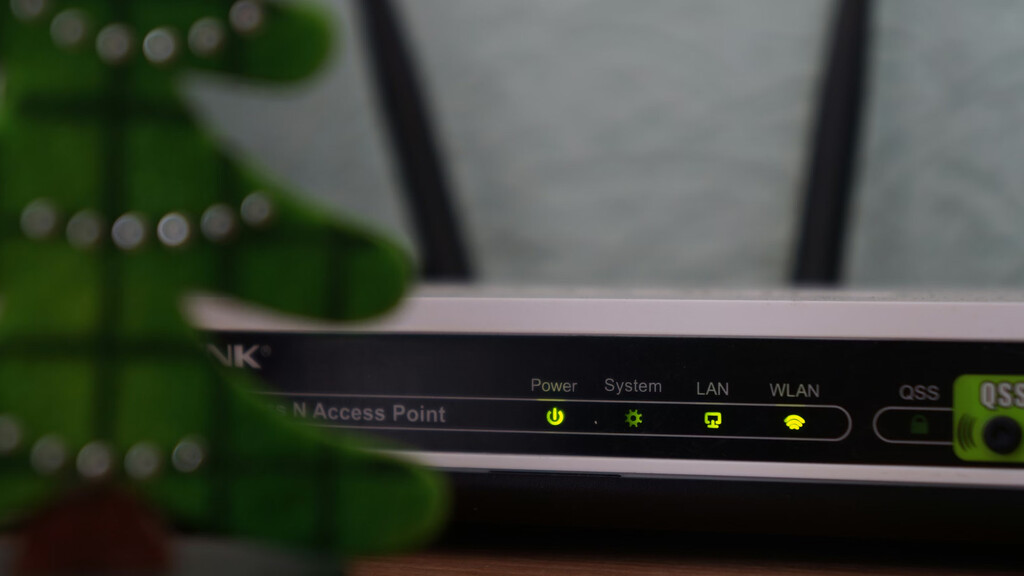
Why 2.4GHz Might Be the Better Choice for Some Devices
Despite its lower speed, the 2.4GHz band is often the better choice for many smart home devices. For example, robot vacuums, smart bulbs, and security cameras typically don't need high data rates and benefit from the extended range and better penetration of 2.4GHz. Connecting them to the 5GHz network can cause connectivity issues and reduce their reliability.
Moreover, the 2.4GHz band is compatible with a wider range of devices, especially older ones. If you have legacy devices, they may only support 2.4GHz, so you'll need to use that network for them to work.
When to Use 5GHz for Maximum Speed
The 5GHz band shines when you need to transfer large amounts of data quickly. Devices like gaming consoles, 4K streaming boxes, and high-performance laptops will benefit from the higher speeds and lower latency of 5GHz. However, these devices should be located within close proximity to the router to avoid signal degradation.
It's also worth noting that the 5GHz band is less crowded than 2.4GHz, which can lead to a more stable connection in areas with many WiFi networks. If you live in a densely populated area, using 5GHz for your high-bandwidth devices can reduce interference.
Common Pitfalls: Interference and Congestion
The 2.4GHz band is used by many other devices, including Bluetooth devices, microwaves, and older routers. This can cause interference and congestion, leading to unstable connections. In urban areas with many neighbors and devices, the 2.4GHz band can become saturated, making it less reliable. The background to this story is set out in WiFi Convector Heater Under 70 Euros: Smart Home Heating. A related thread runs through TP-Link RE300 WiFi Extender Deal at Lidl Next Week. Earlier coverage in Movistar WiFi 7 Router vs WiFi 6: Is the Upgrade Worth shows how the argument developed.
To mitigate this, you can use tools to analyze WiFi channels and choose the least crowded one. However, if you experience frequent drops or slow speeds on 2.4GHz, it might be worth connecting your high-bandwidth devices to 5GHz instead. A closer look at the same subject appears in WiFi 7 vs WiFi 6: Five Real-World Improvements You Will Notice. Anyone following the wider picture can start with Satya Nadella: Assume All AI Models Are Compromised and Act. The same theme surfaces in Lidl Discounts TP-Link WiFi Extender to Under 30 Euros, which takes a different angle.
Practical Tips for Optimizing Your Home Network
Here are some practical tips to help you make the most of both bands: Context on how this played out before sits in Eero Outdoor 7 Review: Weatherproof WiFi 7 for Your Patio. A companion piece, Trending: latest articles, approaches the same subject from another angle.
- Segment your devices: Connect smart home devices and older gadgets to 2.4GHz, and high-performance devices to 5GHz.
- Position your router wisely: Place it centrally and avoid physical obstructions to improve signal strength.
- Use dual-band routers: Modern routers often support both bands simultaneously, allowing you to assign devices appropriately.
- Check for interference: Use WiFi analyzers to find the best channels for 2.4GHz.
- Update firmware: Keep your router's firmware up to date for optimal performance.
Comparison Table: 2.4GHz vs. 5GHz
| Feature | 2.4GHz | 5GHz |
|---|---|---|
| Speed | Slower | Faster |
| Range | Longer | Shorter |
| Penetration | Better through walls | Poorer through walls |
| Interference | More susceptible | Less susceptible |
| Best for | Smart home devices, older gadgets, long-distance connections | High-bandwidth devices, close-range connections |
Frequently Asked Questions
Can I use only the 5GHz network for all my devices?
While you can connect all devices to 5GHz, it's not recommended. Devices that require long range or have low bandwidth needs may experience connectivity issues. Additionally, older devices might not support 5GHz at all.
How do I know which devices should use 2.4GHz?
Devices like smart home sensors, robot vacuums, and security cameras typically work best on 2.4GHz due to their low data requirements and need for better range. Check your device's manual for specific recommendations.
Why is my 2.4GHz network so slow?
The 2.4GHz band is often crowded with other devices and networks, causing interference. Try changing the channel on your router or reducing the number of devices connected to that band.
Can I have both networks with the same name?
Yes, many routers allow you to use the same SSID for both bands, letting devices choose automatically. However, this can sometimes lead to devices connecting to the wrong band, so it's often better to give them distinct names.
Browse the Shop
 Acacia frida deluxe solid wood bed frame |
Bedroom bench |
Bed chest drawers |
Lingerie dresser |
Frame base |
Mirror with jewelry storage |
30 Bathroom Vanity |
Memory foam queen mattress |
Mattresses for back pain |
Nightstand set of 2 |
Grand Goldman Shop |
Civil Lawyer
Deutschland Trikot WM 2026