Customizing your Kindle lock screen and screensaver is a common desire among e-reader owners who want more control over the image displayed when the device is off. While Amazon's Kindle doesn't natively support fully personalized screensavers, there are several workarounds to achieve a similar effect. In this guide, we'll walk you through the options: removing ads if your Kindle has them, displaying the book cover, and even a trick to use a custom image.
Why Customize Your Kindle Lock Screen?
Personalizing your Kindle's lock screen can enhance your reading experience by showing a book cover that reflects your current read or a personal image that makes the device feel truly yours. It also eliminates unwanted advertisements if you have a Kindle with special offers.
Find Original Home Decor sparking conversation at Grand Goldman Shop.

Many users find the default screensavers boring or intrusive, especially when ads appear. By following the methods below, you can take control of what appears on your screen.

Remove Ads from Your Kindle Lock Screen
If you purchased a Kindle with special offers (ads), you can remove them for a one-time fee of about $20 (or €20 in Spain). This is optional and can be done at any time through your Amazon account.

Steps to Remove Ads
- Go to Amazon.com (or your local Amazon site) and sign in to your account.
- Click on the menu button in the top left, then select "E-readers and eBooks Kindle."
- On the next screen, click "Manage Your Content and Devices."
- Go to the "Devices" tab and select your Kindle device.
- Under "Special Offers," you'll see an option to unsubscribe. Click it and pay the fee to remove ads.
Once you've paid, ads will no longer appear on your lock screen. This is the simplest way to get a cleaner look, though it doesn't allow custom images.
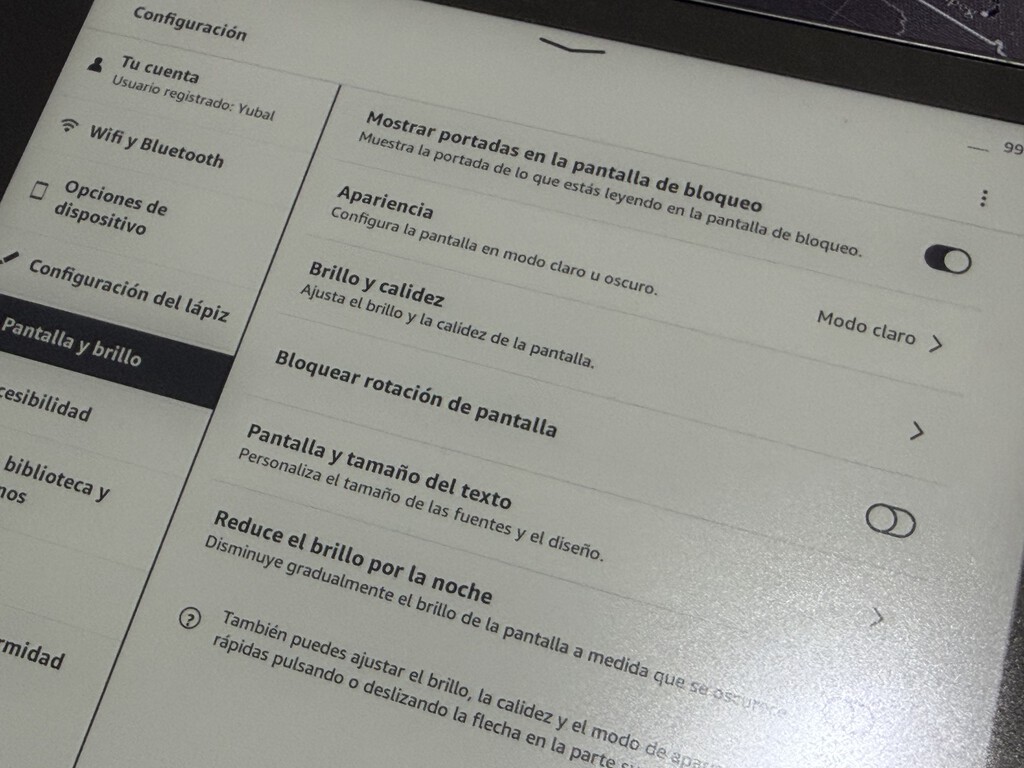
Show the Book Cover on Your Lock Screen
Many Kindle models allow you to display the cover of the book you're currently reading as the lock screen image. This feature is available on newer Kindles and can be enabled in the settings.
To turn it on, go to Settings > Device Options > Advanced Options > Display Cover. Note that this option may not be available on all models or in all regions. When enabled, the lock screen will show the cover of the book you last opened.
Use a Custom Image as Your Screensaver
Kindle doesn't officially support custom screensavers, but there's a workaround: you can create a book or document with your desired image and set it as the current read. When the device goes to sleep, the cover of that "book" will appear as the lock screen image. The background to this story is set out in Trending: latest articles. A related thread runs through Motorola Razr 70 Plus Review: The Foldable That Redefines Convenience.
How to Create a Custom Screensaver Book
First, create a document with your image as the cover. You can use tools like Calibre or online ebook creators. Then, transfer it to your Kindle via USB or email. Open the document on your Kindle, and when it sleeps, the cover will show. Earlier coverage in Kindle Scribe Deal: Save Big on Amazon's 10.2-Inch E-Reader shows how the argument developed. A closer look at the same subject appears in Acer Dual-Screen Portable Monitor: Lightweight Work Anywhere.
Keep in mind that this method requires some effort and the image will only appear if the "Display Cover" feature is enabled. Also, the image will be treated as a book cover, so it may include the title and author if you add them. Anyone following the wider picture can start with UK Employers Must Publish Salaries on Job Ads Under New Law. The same theme surfaces in How to Customize Your Kindle Lock Screen and Screensaver, which takes a different angle.
Comparison of Kindle Lock Screen Options
| Method | Ease of Use | Cost | Customization Level |
|---|---|---|---|
| Remove Ads | Easy | ~$20 | Low (no ads, but default screensavers) |
| Display Book Cover | Easy | Free | Medium (shows current book cover) |
| Custom Image via Book | Moderate | Free | High (any image as cover) |
Frequently Asked Questions
Can I set any image as my Kindle screensaver?
Not directly. Kindle doesn't support custom screensavers natively. However, you can use the workaround of creating a book with your image as the cover and enabling the "Display Cover" feature.
How much does it cost to remove ads from Kindle?
The cost is typically around $20 (or €20), but it may vary by region and model. You can pay through your Amazon account.
Why can't I see the "Display Cover" option on my Kindle?
This feature is available only on newer Kindle models and may not be supported in all countries. Check your device's settings or Amazon's help pages for compatibility.
Will removing ads also remove the default screensavers?
No, removing ads will replace them with Amazon's default screensavers, but you still won't have custom images unless you use the book cover trick.
Customizing your Kindle lock screen is possible through a few methods, each with its own trade-offs. Whether you choose to remove ads, display book covers, or create a custom image book, you can make your Kindle feel more personal. Remember that these tricks may vary by model and firmware version, so always check the latest instructions from Amazon or user forums.
Browse the Shop
 Acacia frida deluxe solid wood bed frame |
Bedroom bench |
Bed chest drawers |
Lingerie dresser |
Frame base |
Mirror with jewelry storage |
30 Bathroom Vanity |
Memory foam queen mattress |
Mattresses for back pain |
Nightstand set of 2 |
Grand Goldman Shop |
Civil Lawyer
Deutschland Trikot WM 2026